
Your entry, within reach.
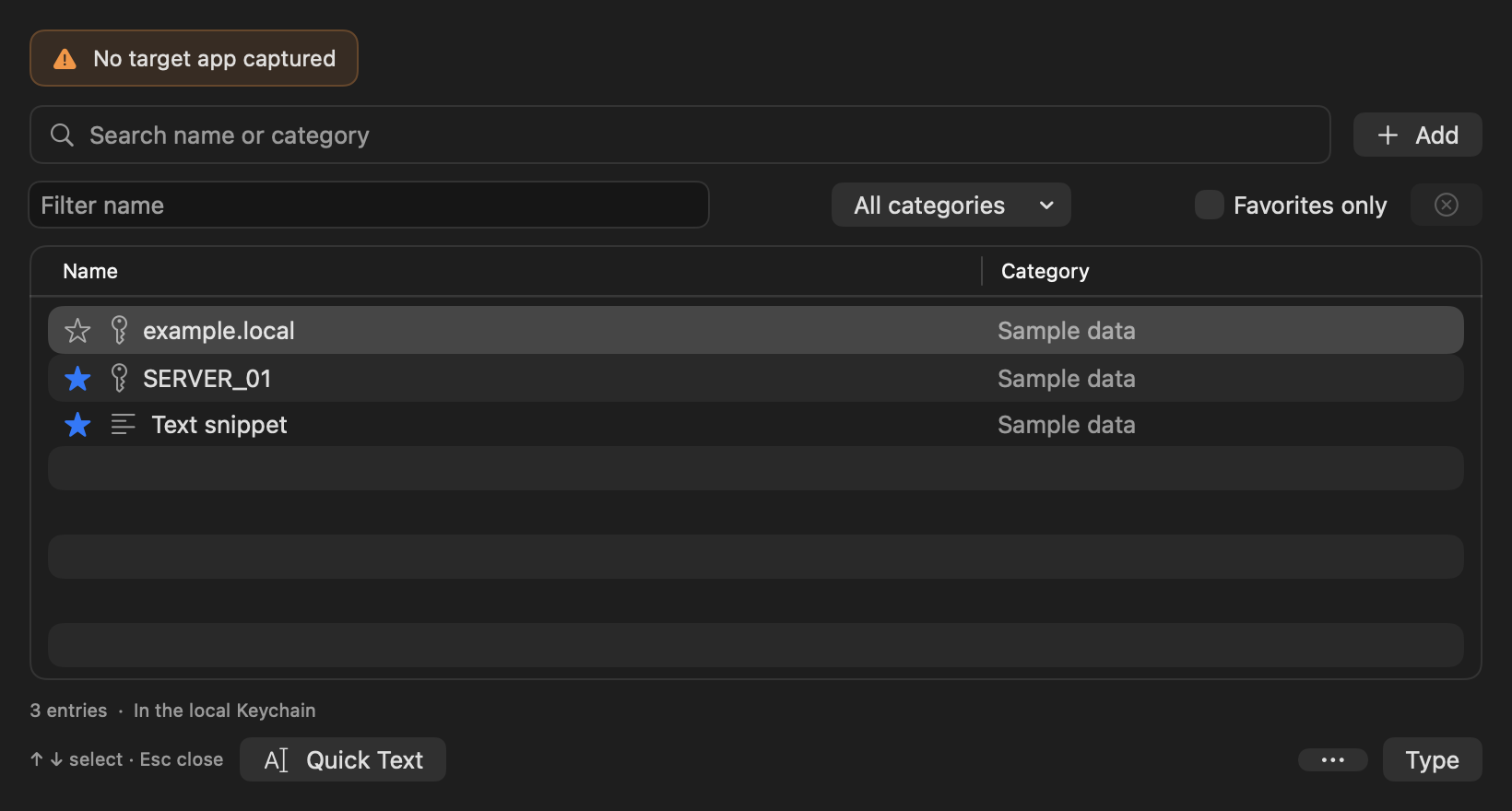
Open search with ⌥P. Search by name or category and filter the list to favourites.
⌥P
The small tool for long passwords.
When copy and paste is unavailable in your remote session, KeyType does the typing. Choose a password or text snippet and approve with Touch ID or your Mac password. Encrypted backups preserve your entries and settings for later.
Select on your Mac
⌥PTouch ID or Mac password
Character by character
A familiar admin problem
The remote session is connected and the sign-in field is waiting – but copy and paste is unavailable. Typing a long password or passphrase by hand interrupts your work.
KeyType is a native menu bar app on your Mac. It outputs saved passwords as keyboard events, typing them into the field you previously focused.
Your workflow
You choose the destination and explicitly approve each entry.
First click the field where the password should be entered.
Open KeyType with ⌥P and search by name or category. Other shortcuts are available.
Confirm with Touch ID or your macOS login password. KeyType types the password character by character.
Small everyday tool. Thoughtful details.
Find entries quickly, adjust their settings and keep track of previous values.
Open search with ⌥P. Search by name or category and filter the list to favourites.
⌥PStore single-line text in the local macOS Keychain too. Quick Text lets you type once without saving it.
History keeps earlier values when entries change. Encrypted backups include those versions.
Auto, German, US or UK: save the appropriate target layout with each entry.
Set typing speed and start delay globally, or override both for individual entries.
Saved for later
Create a password-protected .keytypebackup file in Settings and choose where to save it. Backups include passwords, text snippets, history, categories, favourites, target layouts, individual timing and app settings.
Choose a separate password of at least 12 characters. KeyType encrypts the file with AES-256-GCM and derives the key using PBKDF2-HMAC-SHA256.
Open the file and unlock it with your backup password. KeyType shows the date, entry count and history versions before importing.
Existing entries are kept. Identical entries are skipped; differing versions are added as copies. Settings from the backup are applied.
Keep your backup password safe: KeyType does not store it and cannot reset it. Configure Accessibility and Touch ID separately on each Mac.
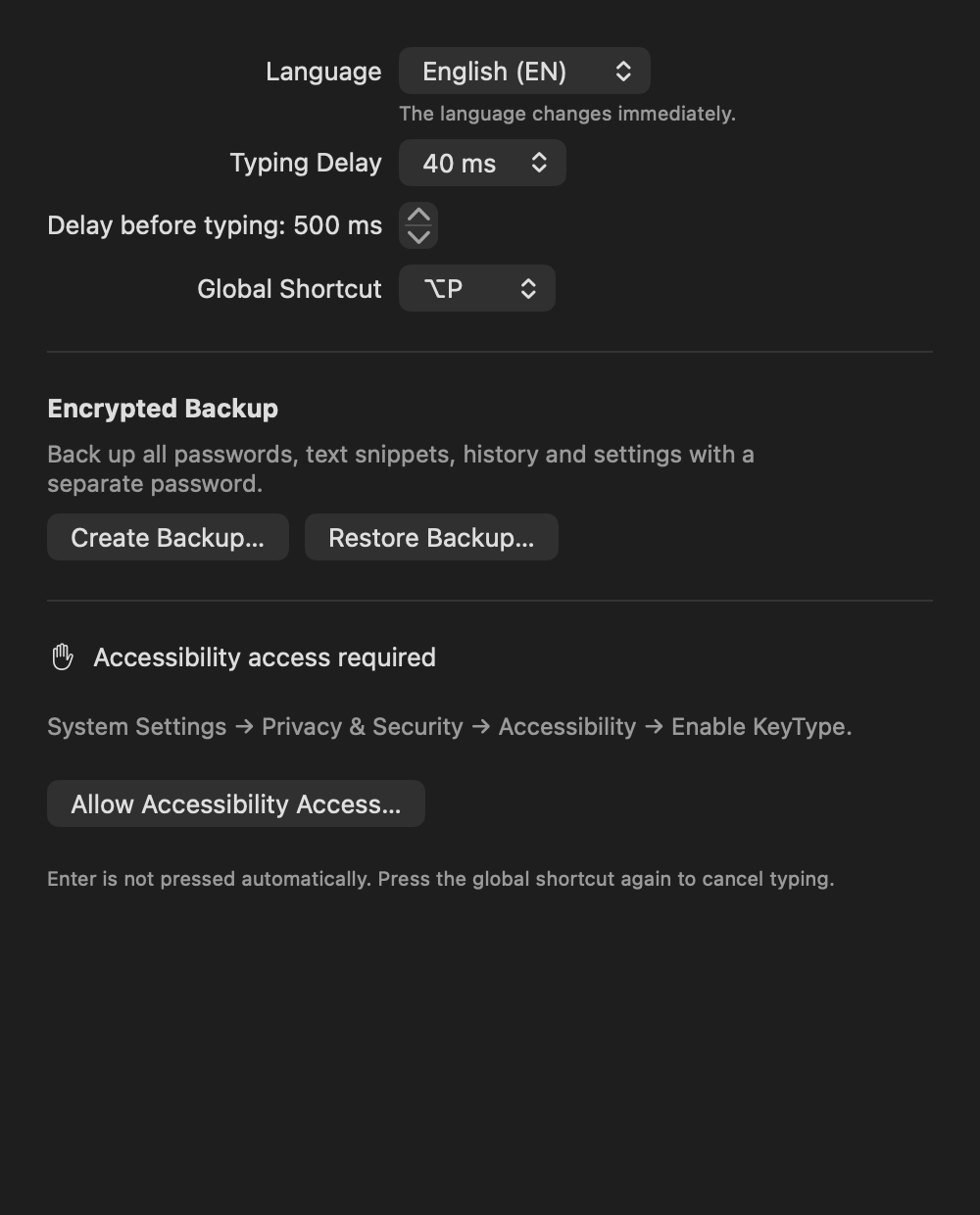
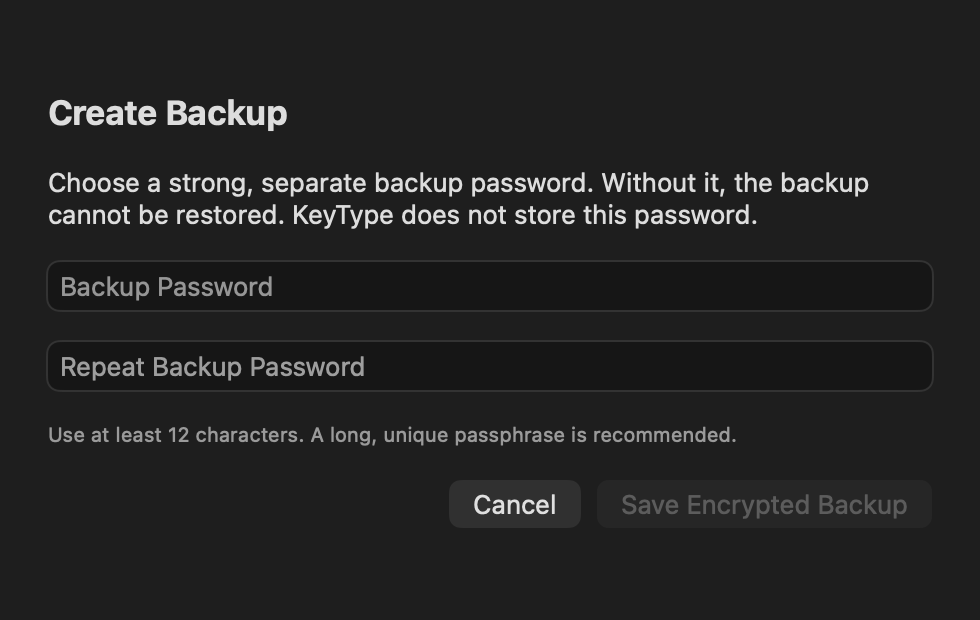
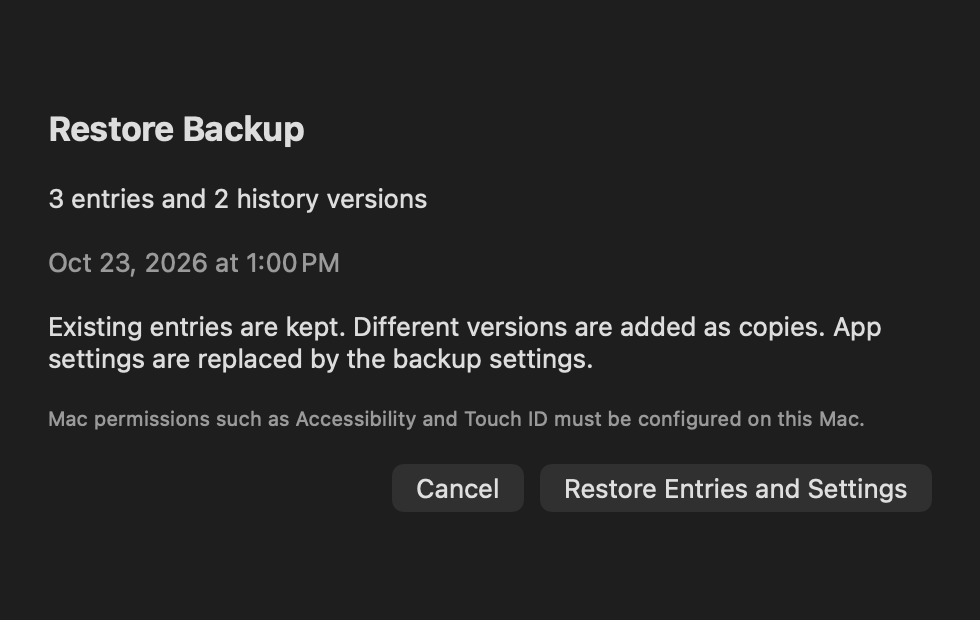
Native headless captures with synthetic data. The restore preview uses a prepared sample state; no backup was imported.
Mac keyboard meets target system
The same key can produce a different character depending on the keyboard layout. The selected target layout, remote client configuration and active layout on the target system must match.
Uses the active Mac layout. It does not automatically detect the remote operating system or its layout.
Maps the standard German PC target layout.
Maps the standard US PC target layout.
Maps the standard UK PC target layout.
Characters that cannot be mapped are rejected before output starts. This does not imply universal support for all special characters, clients or keyboard layouts.
Omnissa Horizon has been successfully tested in practice by the developer.
The Citrix practical test is still pending according to the known status.
Stored locally. Typed with approval.
KeyType contains no networking, cloud, telemetry or clipboard functionality. Passwords are stored in the local macOS Keychain. You explicitly approve typing into the field you previously selected.
PrivacyTouch ID or your macOS login password authorises typing.
Press the chosen shortcut again to stop typing while output is in progress. Characters already typed remain in the field.
KeyType types the value. Submitting it remains your decision.
Good to know
All saved entries, including history and metadata, plus language, shortcut, timing and window layout. System permissions are not transferred.
They are kept. Identical entries are skipped and differing versions are added as copies. Your app settings are replaced with the settings from the backup.
KeyType stops before typing when Caps Lock is enabled on your Mac. Check Caps Lock on the target system too; KeyType cannot detect its remote state.
KeyType requires macOS 14 or later and the macOS Accessibility permission to output keyboard events.
Universal compatibility is not guaranteed. Omnissa Horizon has been successfully tested in practice by the developer; the Citrix practical test is still pending. The remote client, target system and selected layout must match the output.
Choose German, US or UK for the corresponding standard PC target layout. The remote client and active layout on the target system must match. Auto only uses the active Mac layout; it does not detect the remote layout.
In the local macOS Keychain. KeyType entries are not synced via iCloud. Earlier values are archived when passwords actually change and can be viewed later.
Contact support for information about availability. The KeyType support page links to the central contact channel for questions.
A small tool for your Mac
Contact support for information about availability.